Using Logic Apps to Schedule Scaling for Azure SQL Databases
Don’t care about context? Skip directly to the guide
Don’t care about anything but code? Go straight to the code
More databases, more problems
Do you have a bunch of Azure SQL DTU based databases? Sure, they’re cost-effective, easy to manage, and are great at low/medium workloads. Does the demand for those workloads vary on a consistent schedule? There’s a good chance it does. The database serving your Hangover Cure app probably has a big spike from 6am-noon Sat-Mon mornings but is hopefully pretty quiet for the other times.
Marketing idea. Make a sibling app called “Are you an alcoholic” and link to that on Tues-Friday mornings.
Anyway, with such a repeatable pattern it might make sense to scale those databases on a schedule to save some money.
Should you do this? Well, the answer is always “It depends”. There are some technical considerations for the cutover that mean that depending on the activity type, long running updates vs short selects, and load, you need to look for any impact.
But since we’re talking about applications that shutdown faster than a Hometown Buffet after a health-inspector visit, you’re likely not under any load while you’d be performing the scale.
We’ve decided to proceed
Ok, we’ve got a good candidate and the cost savings are worth the effort to scale the DB layer. We’ve got a small scope task on a defined schedule, so naturally the appropriate choice is to spin up a kubernetes cluster of microservices with every possible design pattern shoehorned in, then run it on a combination of baremetal servers, cloud VMs, and smart fridges. 1
Or, we could write a Python script in a scheduled Function/Lambda? That’s a pretty good approach. No Sarcasm.
Lets try something new though. Lets experiment with Logic Apps. I’m generally not a fan of low/no code solutions. They tend to promise a lot and just fall apart all while breaking your brain the second you try to do something outside of the demo.
That being said, I’ve heard promising things about Logic Apps both from a capability stance as a “glue-code” tool as well as encroaching on the Azure Function/Lambda/Control-M/Cron space for less complex tasks. It also seems to be positioned to use in higher-volume scenarios, which is something I’ve generally not seen these kinds of low/no-code products used for.
So we’re just going to give it a try here and see what it’s like to build up some infrastructure management and live with it for a while.
Goals
- A set of databases to be sized down to Basic SKU at 5:30pm PT every day.
- The same set of databases to be sized up to Standard (10 DTU) SKU at 5:30AM PT every day.
- These databases can be throughout my target Subscription.
- Be able to add databases to the set without changing the solution.
- Don’t take action on anything other than the selected databases
Getting started
We are using some preview items in this example.
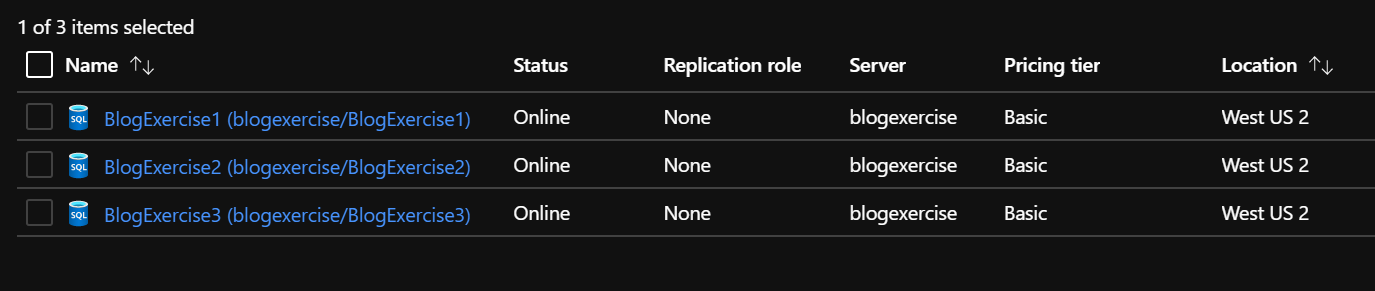
Here are the three databases running. I only want 1 and 2 to be included in this autoscaling action. They’re all in Basic size now, so we’ll start with the size-up method first.
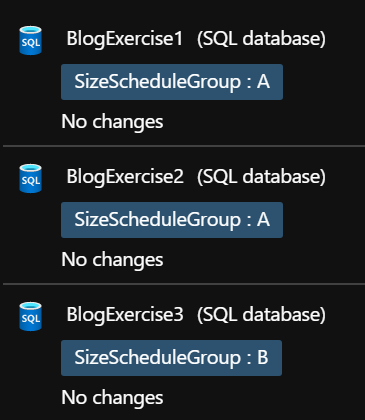
Lets use Tagging to provide classification of the resources we want to operate on. It’s very possible that we could run multiple schedules for different scaling needs. So let’s put databases 1 and 2 in SizeScheduleGroup A, and well put 3 into imaginary group B (or we could just not tag it at all)
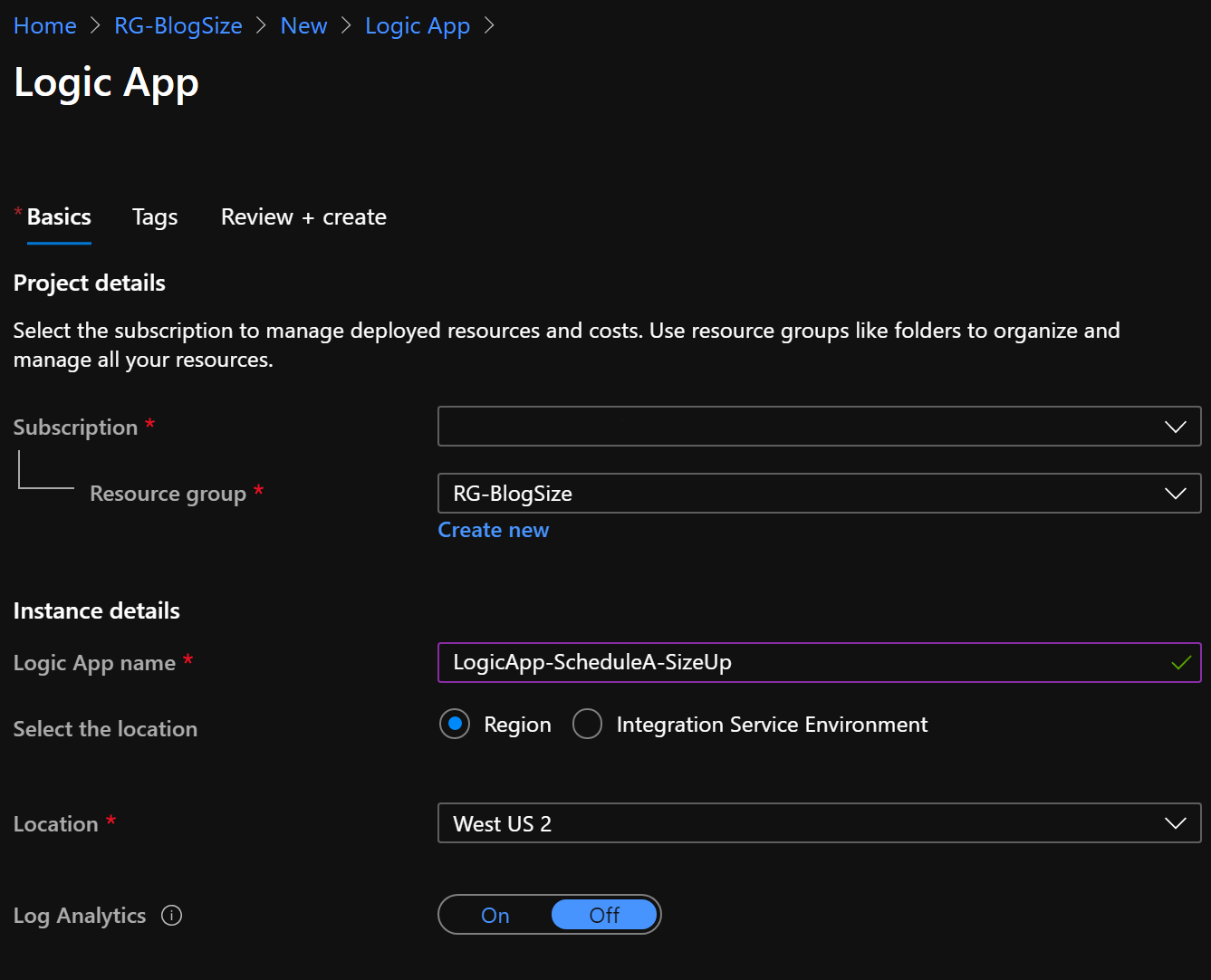
Spin up the logic app. Not a lot to dive into here for our needs today.
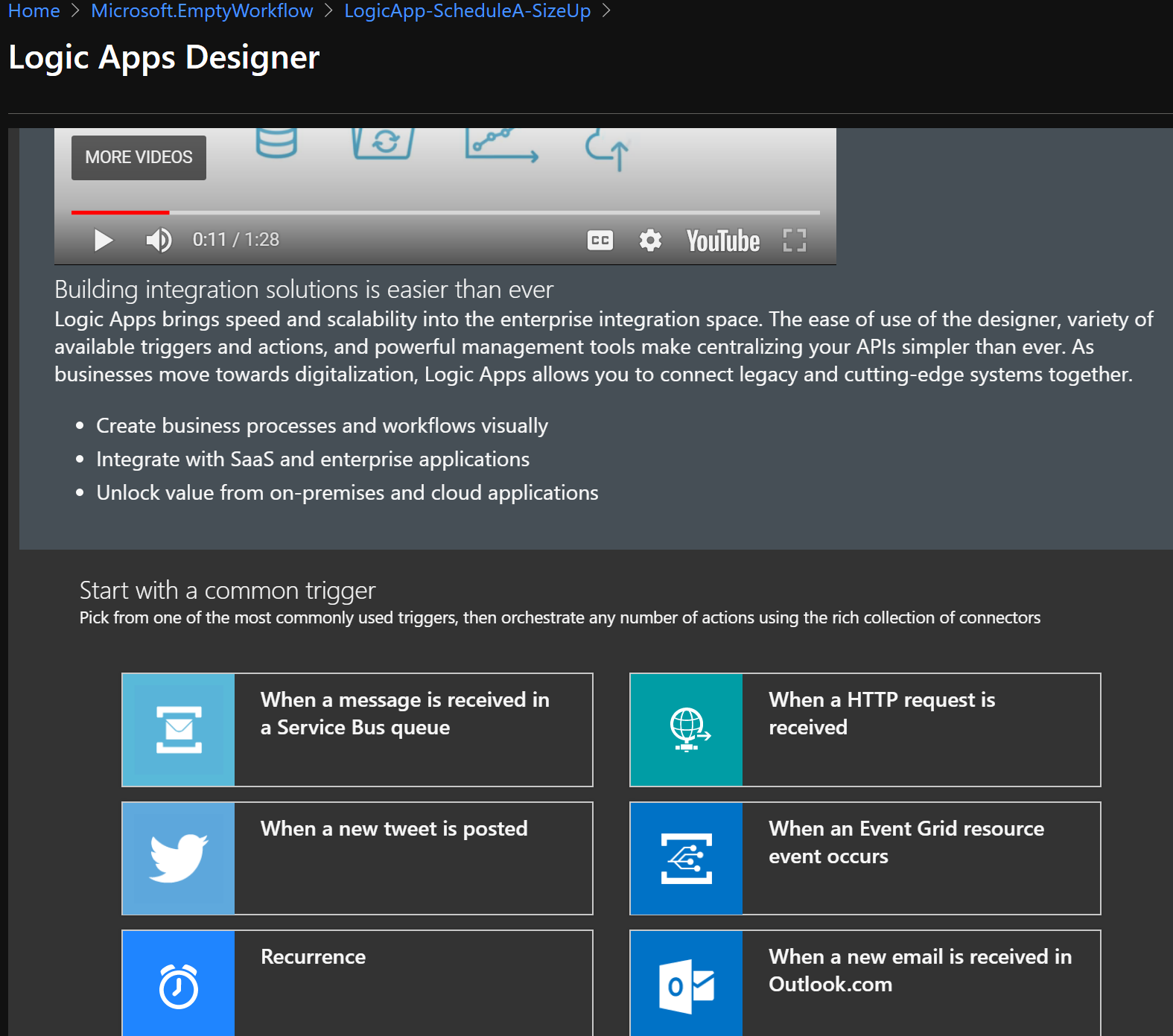
Here’s the start page for actually building out your logic app. There are a lot of diffferent trigger types and templates to choose from.
I’ve never watched more than 11 seconds of this video. First, I generally don’t read instructions. Second, videos take too long to get to the point. Third, the narrator’s voice was too calming. I’m more comfortable with things being explained to me by a grumpy coder who’s just come out of a three hour meeting where they had to explain that blockchain wouldn’t noticeably improve a Wordpress site.
We’re just going to pick recurrence and try not to be distracted by all the horrible things that could be done to the world with Twitter triggered workflows.
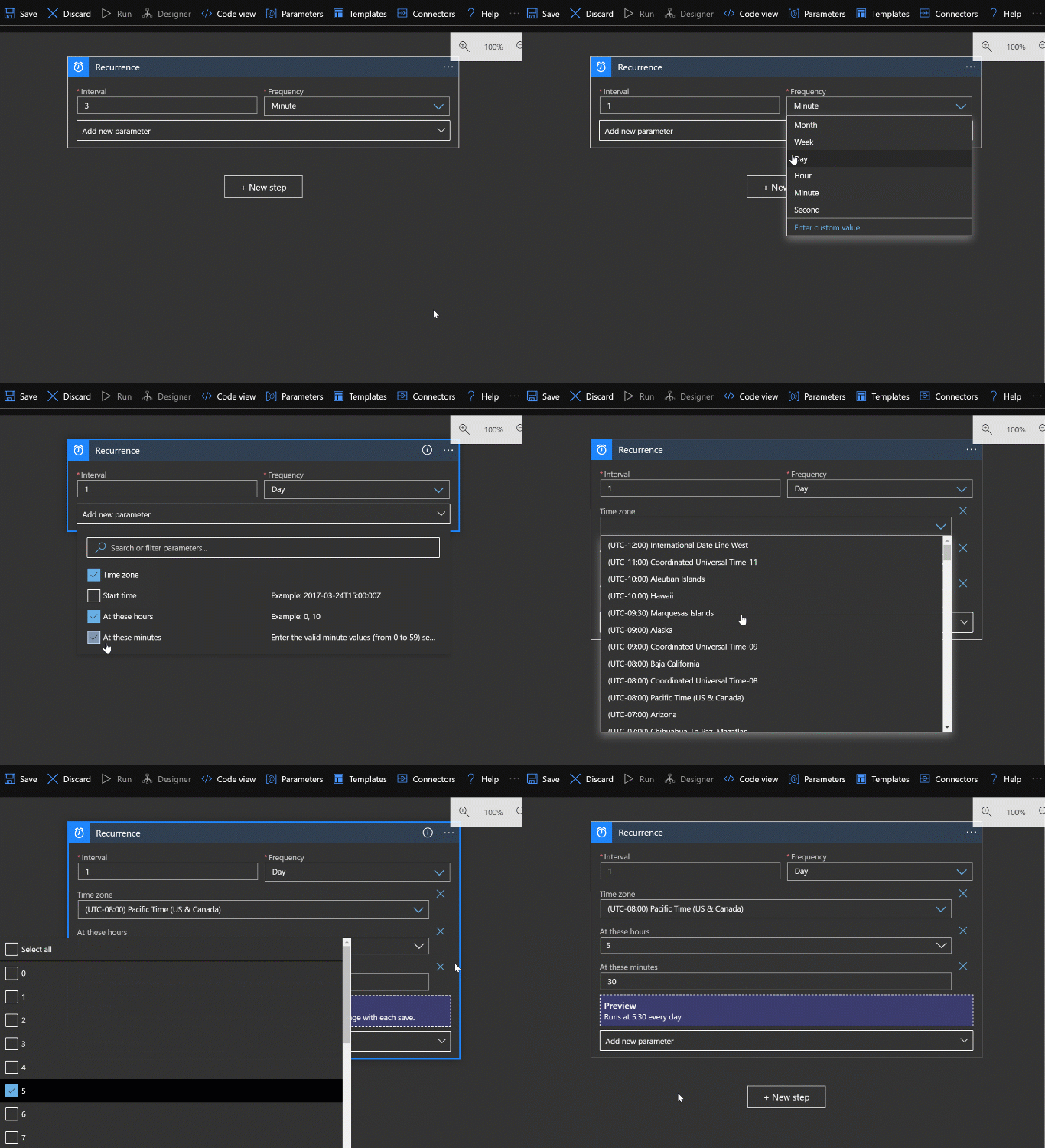
It’s worth demonstrating the parameter UI. You can see that all the parameters available for a given step aren’t shown unless you choose to add them. Otherwise each step would probably take up way too much space. So be aware to look at the “Add new parameter” dropdown to get an idea of what built in options are available for a given step.
Now that we’ve set our trigger to run at 5:30AM every day. We need to start some actual processing. Our requirement is for this App to operate on any eligible database. So we need to get a list of resources in our Subscription.
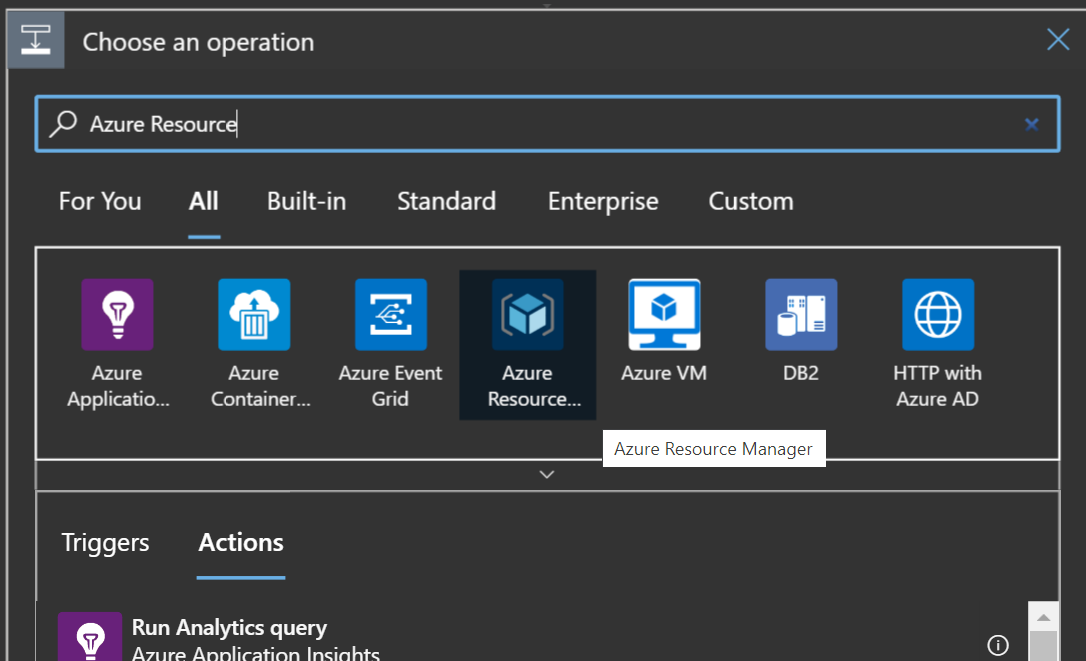
Add a new step after the recurrence (Everything in logic apps is a workflow). Now you have to choose the type of operation. There are a lot and the list will grow as more connectors get added, so you first search by a category, then choose a specific type. Look for Azure Resource Manager.
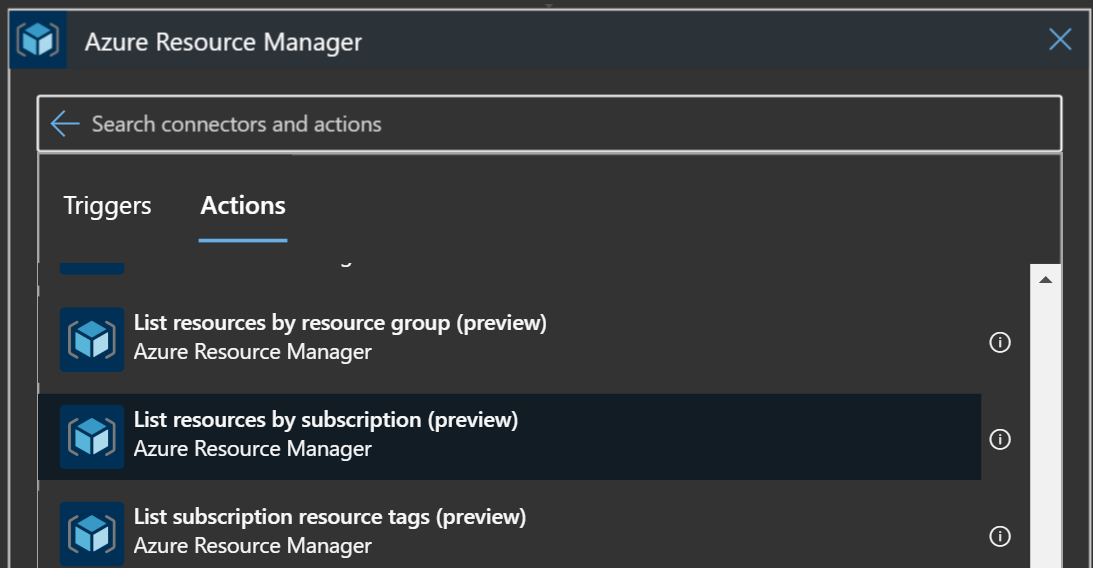
Now you have a list of specific operations in that group. We’re going to use “List resources by subscription”
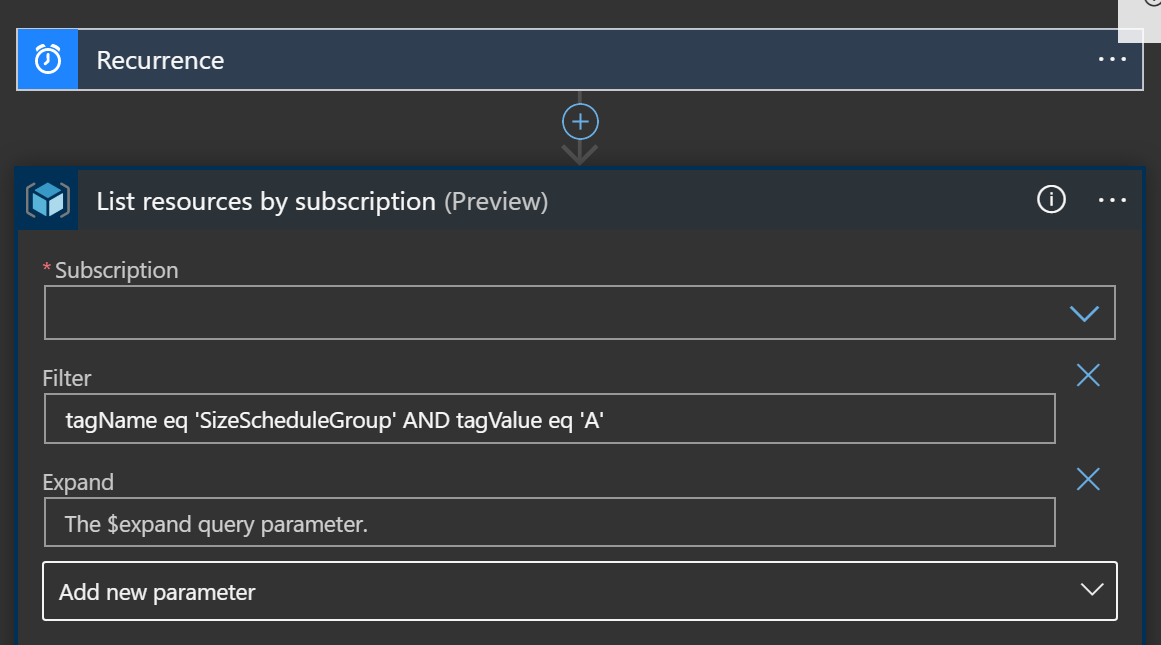
You start with choosing the subscription you want to operate in, then adding a filter. This was painful, so I’ve taken one for the team here. The documentation doesn’t really jump out at you, but what you’re doing with this filter is the same value you would pass in the the resources list API call. What I ended up with was:
tagName eq 'SizeScheduleGroup' AND tagValue eq 'A'
This gives us any item in the subscription with the SizeScheduleGroup tag set to “A”. But wait, weren’t we only supposed to operate on Databases? Well, you can’t seem to combine the resourceType eq ... check with the tag check. It just returns 400 unless you do one at a time. So, we’ll do the tag check first, and then validate later.
Now this is where programmers reach for their handy console.log or print commands to see if they’re even remotely on the right track. But we’re in a workflow designer. All of our crutches, I mean, professional techniques, don’t work here. Luckily we have an out. Just run the app. The screen will switch the the execution results view and you’ll see the results including a complete view of the data retrieved.
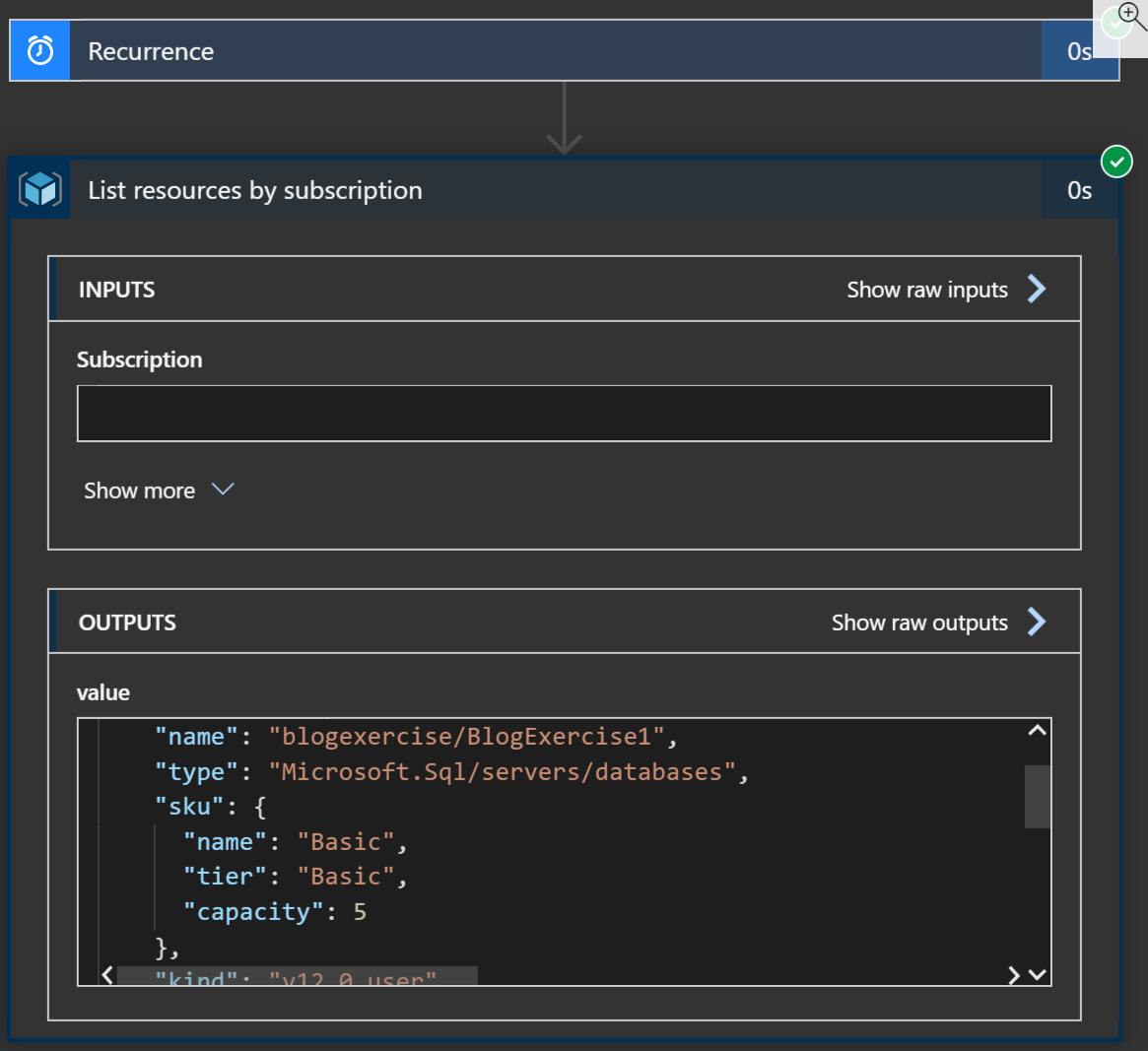
Here we’ve got the results of the list resources step and that shows us two really important things. One, our query actually worked right (no thanks to you documentation), and two, it shows us the details of the values that we’re going to use for the next steps.
[
  {
    "id": "/subscriptions/nope/resourceGroups/RG-BlogSize/providers/Microsoft.Sql/servers/blogexercise/databases/BlogExercise1",
    "name": "blogexercise/BlogExercise1",
    "type": "Microsoft.Sql/servers/databases",
    "sku": {
      "name": "Basic",
      "tier": "Basic",
      "capacity": 5
    },
    "kind": "v12.0,user",
    "location": "westus2"
  },
  {
    "id": "/subscriptions/nope/resourceGroups/RG-BlogSize/providers/Microsoft.Sql/servers/blogexercise/databases/BlogExercise2",
    "name": "blogexercise/BlogExercise2",
    "type": "Microsoft.Sql/servers/databases",
    "sku": {
      "name": "Basic",
      "tier": "Basic",
      "capacity": 5
    },
    "kind": "v12.0,user",
    "location": "westus2"
  }
]
We’ve got a couple of resource listings describing the databases we need to work on. So now we need to operate on each of them. We get to play with control flow now.
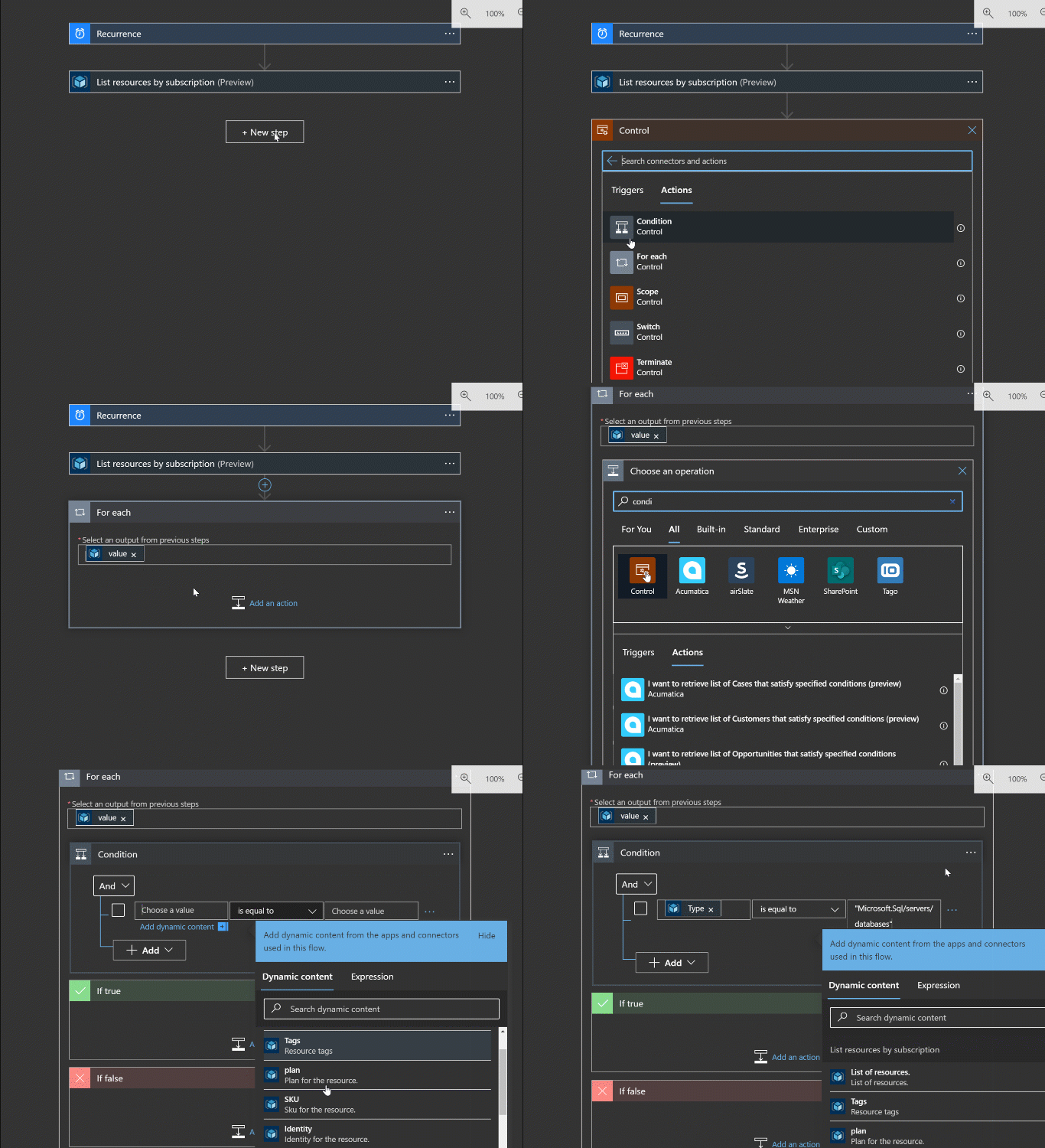
Add another step, this time searching for “for” or “control”. From there we can add the for each step. You choose the output from the list for the source and this task will execute for each item returned from the list operation.
First thing to do is to ensure that a schedule sizing tag wasn’t applied to something other than a database. Changing the SKU for random component types might be fun in a chaos monkey kind of way, but not what we’re aiming for now.
Within the loop, add an if conditional and have it check the “type” value (remember that output you kept around?) to ensure that it’s a database. For any mistagged items we’ll just skip for now, but an email or Jira item creation could make sense.
For items that are correct let’s change the SKU.
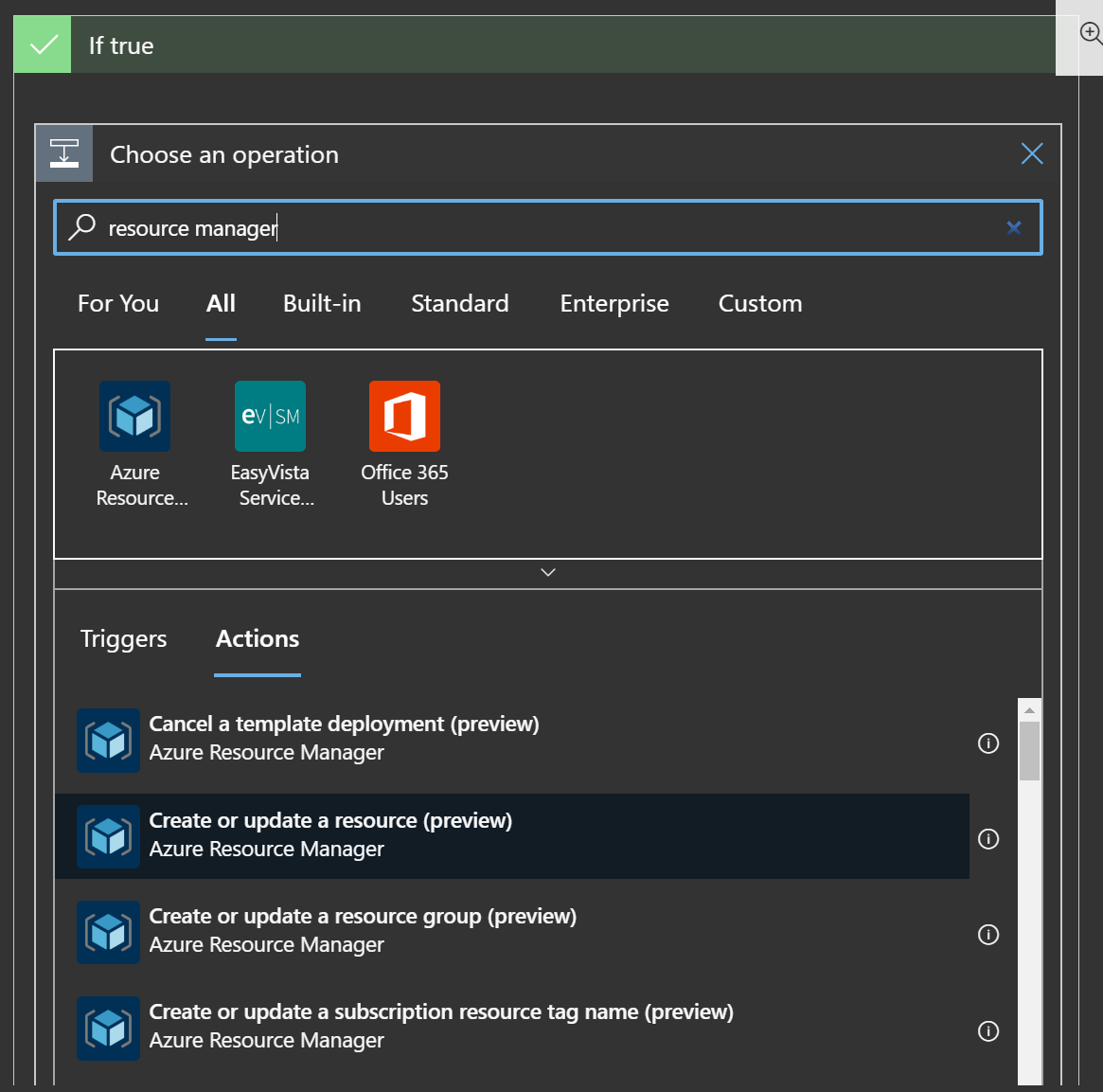
Within the “If true” section, add a step for “Create or update a resource” under the resource manager grouping.
This task really wants to be helpful and get you to select a specific resource from populated dropdowns, but we’re operating dynamically of the current item in the loop, so scroll to the bottom of the drop down items to enter a custom value.
Our custom value is going to be an expression that carves up the values from the current resource.

Resource group we need to parse out of the “id” value on the item with some string operations.
Resource provider is easy since it will always be Microsoft.Sql
Short Resource Id is NOT clearly explained, but that should be everything in the “id” value after the provider, or “servers/blogexercise/databases/BlogExercise1”
Here’s the code fragment I used to get that:
substring(item()?['id'], indexOf(item()?['id'], '/servers/'))
Api version I’m using “2019-06-01-preview”
So great, you’ve managed to dynamically identify the exact resource you want to update, but what do you update it to? For me, and remember this is in preview, the option to add new parameters through the UI just didn’t work with the expressions used instead of picking values from the list. So here’s a hack to get started. In the code view, add the “body” section here.
"body": {
	"location": "@items('For_each')?['location']",
	"sku": {
		"capacity": 10,
		"name": "Standard",
		"tier": "Standard"
	}
}
Location is a needed param for the update that you are helpfully not informed about until it fails. So here we’re just pulling the “location” value from the current item in the loop.
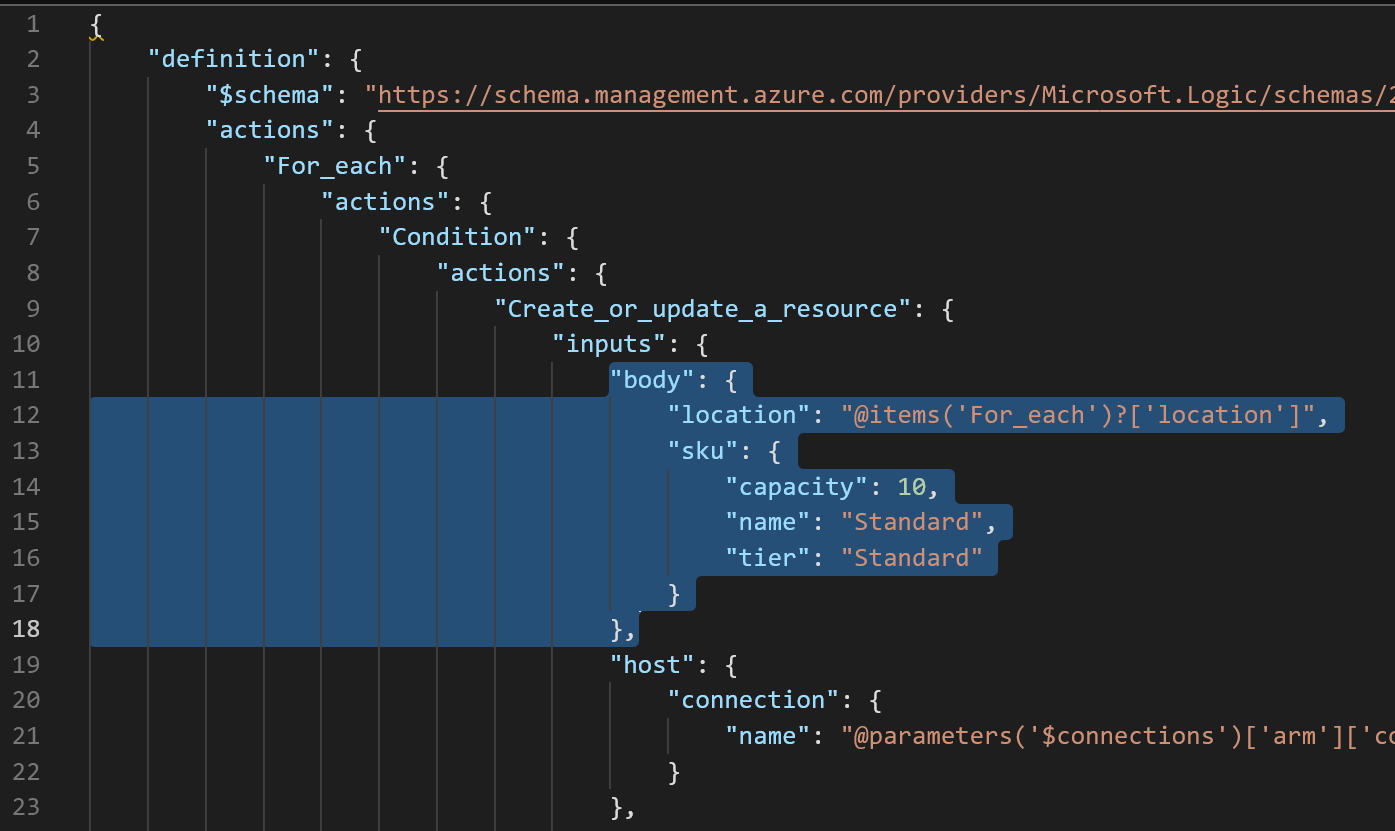
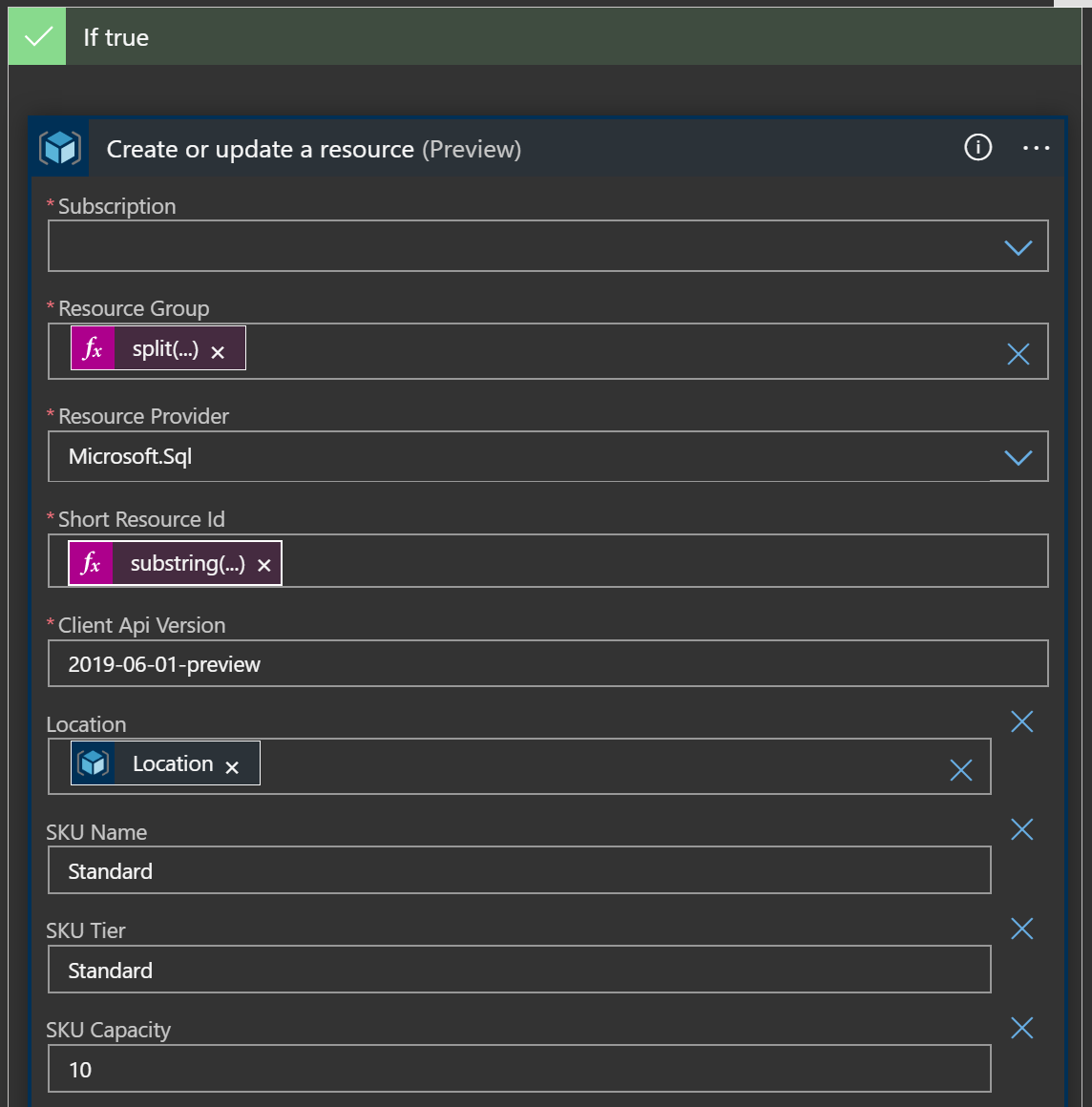
For me at least, once that’s added to the code you can switch back to designer view and the UI catches up and lets you work as normal.

Run the app again and, hopefully, you see the below results with the correct databases being sized up. You can see the different data for each step of execution in the job to track down issues.
We’ve got a working app that will size up our databases as needed. Now that we’ve got that we need another job to size everything back down in the evening. There are ways to reference other logic apps from inside an app, so I’m sure we could come up with a way to get really dogmatic about DRY, but for right now we’ll keep it simple and create another app with just a different start time and set of target SKUs.
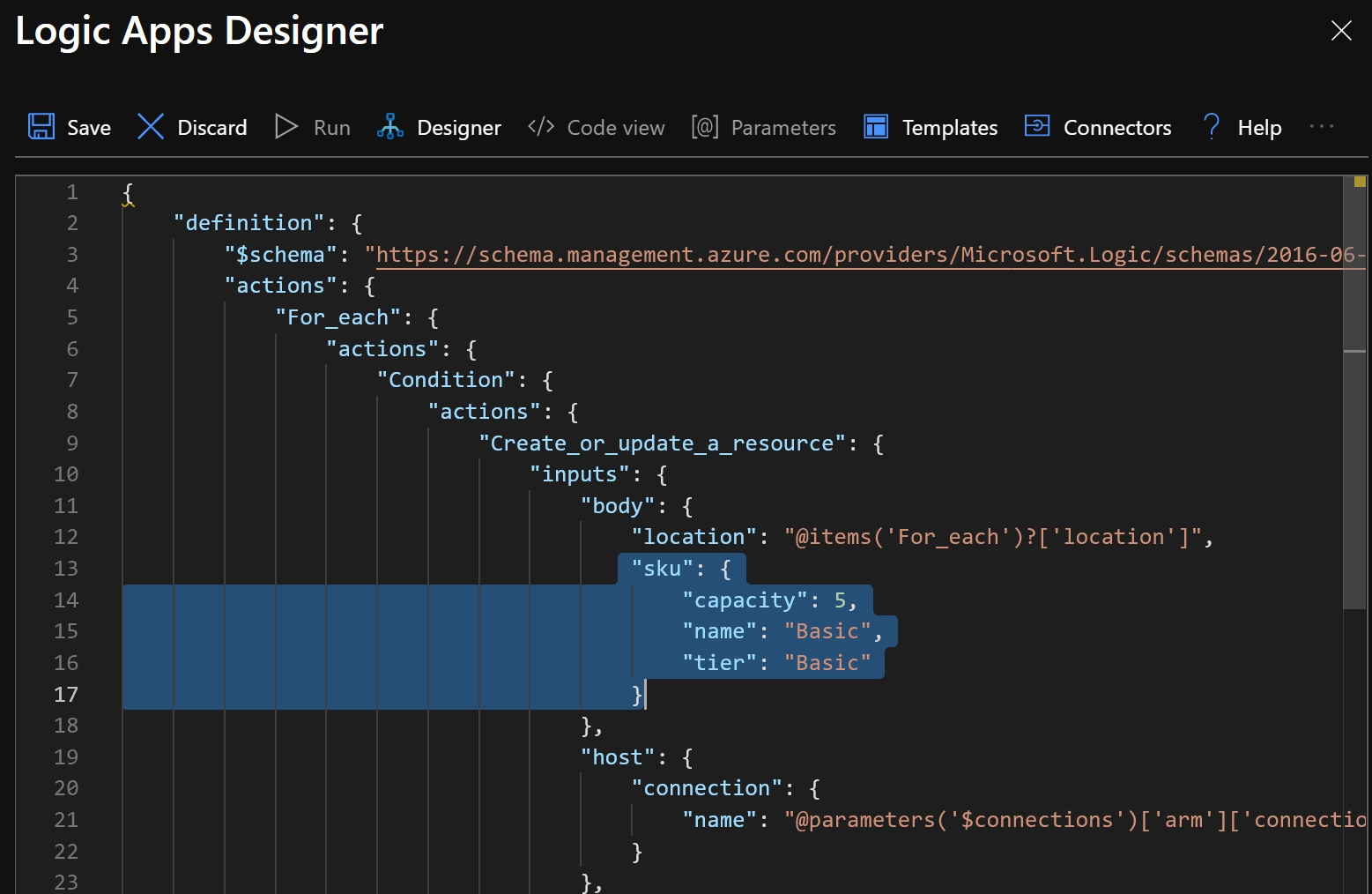
Create the new app with a blank template and copy over the json from the code view. Change the recurrence start time, and the capacity/tier settings and run that and you should end up with Basic sized DBs

Productionalization / Continuous Improvement
- Make this one job that executes twice and sets params depending on time of day
- Use Service principals for authentication
- Jira/Azure Devops/whatever ticket creation for any mistagged items
- Raise VC funding for the K8s/smart fridge platform
Source
-
Please no. ↩︎